Introduction
In today’s fast-paced digital world, the ability to streamline tasks and automate processes is more crucial than ever. One such task that many professionals find themselves repeating is the management of data within Google Sheets. Fortunately, with the advent of powerful AI tools like ChatGPT, automating Google Sheets with ChatGPT API has become not only possible but also incredibly efficient. This blog post will guide you through the process of leveraging the ChatGPT API to enhance your Google Sheets experience, making your workflow smoother and more productive.
Step-by-Step Instructions
Before diving into the specifics, it’s important to understand what the ChatGPT API is and how it can be integrated with Google Sheets. The ChatGPT API is a tool that allows developers to incorporate OpenAI’s language models into their applications. By using this API, you can automate tasks that involve natural language processing, such as generating text, summarizing information, or even translating languages. Now, let’s explore how you can start automating Google Sheets with ChatGPT API.
Step 1: Setting Up Your Environment
The first step in automating Google Sheets with ChatGPT API is to ensure that your development environment is ready. You will need a Google account to access Google Sheets and a valid API key from OpenAI to use the ChatGPT API. If you haven’t already, sign up for an API key on the OpenAI website. Once you have your API key, you can proceed to the next step.
Step 2: Creating a Google Apps Script
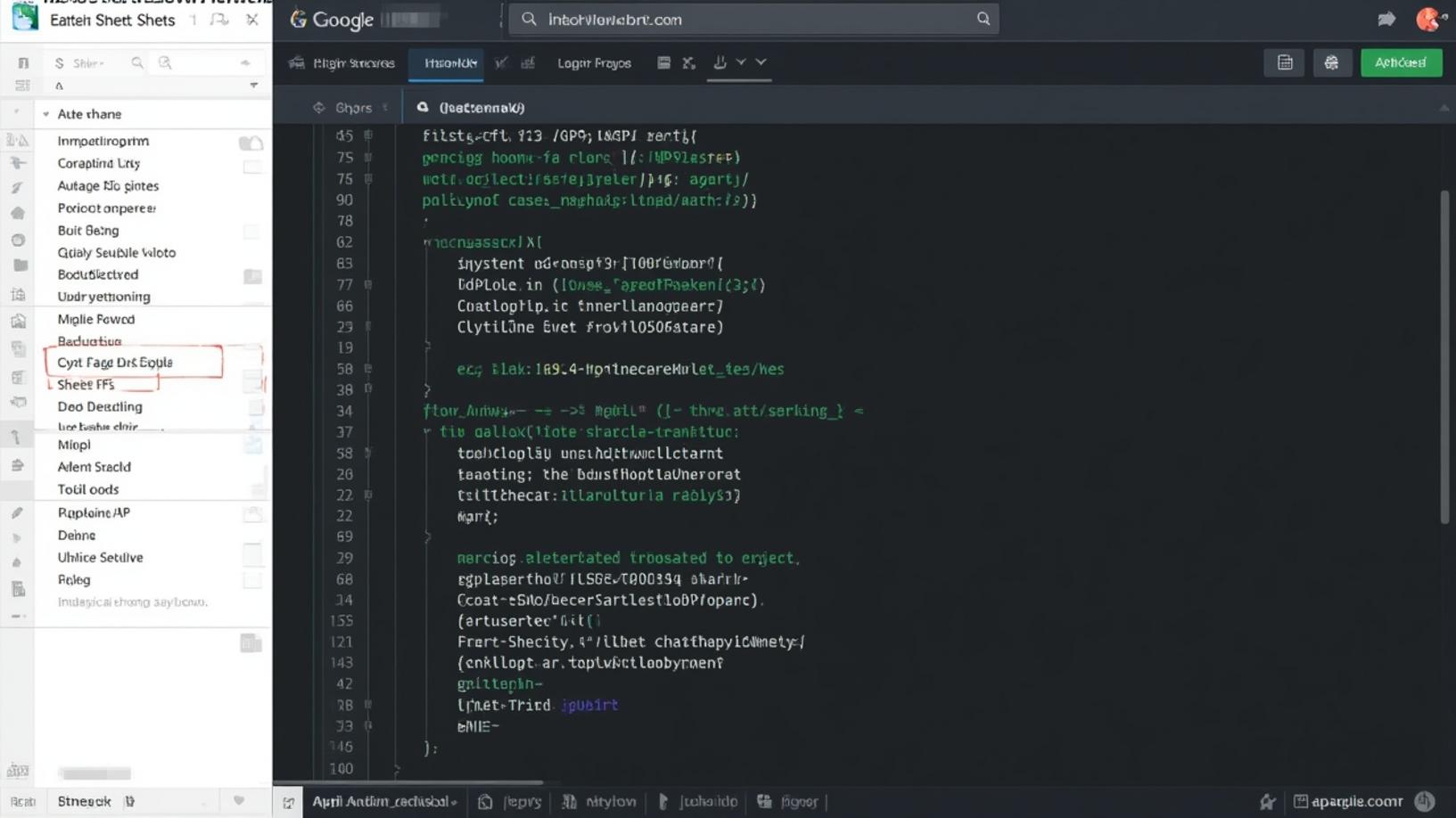
Google Apps Script is a powerful tool that allows you to automate tasks across Google products. To begin, open your Google Sheet and navigate to the ‘Extensions’ menu, then select ‘Apps Script’. This will open a new window where you can write your script. Here, you will write a script that calls the ChatGPT API and processes the data in your Google Sheet.
Step 3: Writing the Script
In your Apps Script editor, you will need to write a function that sends data from your Google Sheet to the ChatGPT API and receives a response. Here’s a simple example of what your script might look like:
function processSheetWithChatGPT() {
  var sheet = SpreadsheetApp.getActiveSpreadsheet().getActiveSheet();
  var data = sheet.getDataRange().getValues();
  var apiKey = 'YOUR_API_KEY';
  var url = 'https://api.openai.com/v1/chat/completions';  for (var i = 0; i < data.length; i++) {
    var payload = {
      'model': 'gpt-3.5-turbo',
      'messages': [{'role': 'user', 'content': data[i][0]}]
    };
    var options = {
      'method': 'post',
      'headers': {'Authorization': 'Bearer ' + apiKey},
      'contentType': 'application/json',
      'payload': JSON.stringify(payload)
    };
    var response = UrlFetchApp.fetch(url, options);
    var result = JSON.parse(response.getContentText());
    sheet.getRange(i+1, 2).setValue(result.choices[0].message.content);
  }
}
This script takes the data from the first column of your sheet, sends it to the ChatGPT API, and writes the response in the second column. You can modify this script to suit your specific needs, such as handling different types of data or performing more complex operations.
Step 4: Running the Script
Once your script is ready, you can run it by clicking the 'Run' button in the Apps Script editor. The script will process the data in your Google Sheet and populate the responses in the designated column. If you encounter any errors, double-check your API key and ensure that your script is correctly formatted.
Step 5: Automating the Process
To fully automate the process, you can set up a trigger in Google Apps Script to run your function at regular intervals. This way, your Google Sheet will be updated automatically without any manual intervention. To set up a trigger, go to the 'Triggers' section in the Apps Script editor and create a new trigger for your function.
Conclusion
Automating Google Sheets with ChatGPT API opens up a world of possibilities for enhancing productivity and efficiency in data management. By following the steps outlined in this guide, you can harness the power of AI to automate repetitive tasks, generate insights, and streamline your workflow. Whether you're a business professional, a researcher, or a student, integrating the ChatGPT API with Google Sheets can significantly improve your data handling capabilities. As technology continues to evolve, embracing tools like the ChatGPT API will be key to staying ahead in the digital age.